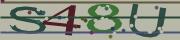
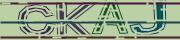
How To Configure BotDetect ASP Classic CAPTCHA Options (BotDetect v3.0; deprecated)
BotDetect ASP Captcha component allows detailed customization of many Captcha properties, both through the custom BotDetect\CaptchaConfig.asp configuration file and ASP form source code.
Beside the explanations on this page, you can also see how various Captcha properties have been set in the Captcha configuration code samples included in the BotDetect installation. You can reuse the sample source code that fits your application requirements.
- BotDetect Captcha configuration mechanisms
- the Captcha ASP library configuration file in your local Captcha library copy
- the Captcha ASP object instance properties in your form code
- BotDetect enumerated Captcha values can easily be referenced by name
- Captcha settings randomization can be used in both of the above
- BotDetect Captcha internationalization
- BotDetect Captcha code settings
- BotDetect Captcha image settings
- BotDetect Captcha sound settings
- BotDetect Captcha reloading settings
- BotDetect Captcha web settings
BotDetect CAPTCHA ASP Configuration Mechanisms
BotDetect Captcha properties can be set in several different ways, depending on the type of value you are customizing.
Captcha ASP Library Configuration File
When you copy the BotDetect ASP Captcha library to your ASP application folder, you can edit the BotDetect\CaptchaConfig.asp file. This file contains global BotDetect settings which apply to all Captcha object instances in the application.
This is the preferred method of Captcha configuration if you are only placing Captcha protection on one form in the ASP application, or you want Captcha instances on separate forms to all use the same settings.
For example, to set Captcha image style and code length, you would make the following changes in theBotDetect\CaptchaConfig.asp file:
' Captcha code configuration
' ---------------------------------------------------------
LBD_Configuration_CodeLength = 4

  ...

' Captcha image configuration
' ---------------------------------------------------------
LBD_Configuration_ImageStyle = LBD_ImageStyles("Lego")
Captcha ASP Object Instance Properties
This option is suitable if you want to place Captcha protection on multiple forms in the same ASP application, but have them use different, mutually incompatible Captcha settings (for example, a Captcha code length of 6 for the registration form Captcha, and a Captcha code length of 3 for the comment form Captcha).
The use of this option should be carefully considered and used sparingly, as the parameter values set this way have to be persisted in ASP Session state. Besides consuming additional server memory for each visitor, this option is also less reliable than the global settings (since they won't apply to users with expired Sessions or disabled cookies).
For example, to set Captcha image style and code length, you would specify them in your ASP form code after theCaptcha object has been initialized and before it's added to the page:
<% ' Adding BotDetect CAPTCHA to the page
Dim SampleCaptcha : Set SampleCaptcha = (New Captcha)("SampleCaptcha")
SampleCaptcha.UserInputID = "CaptchaCode"
SampleCaptcha.ImageStyleName = "Lego"
SampleCaptcha.CodeLength = 4
Response.Write Captcha1.Html %>
BotDetect Enumerated Captcha Values
The COM component interface underlying the BotDetect Captcha ASP library takes integer parameters as enumerated values – for example, the Captcha image style in the COM interface is represented as an integer between 0 and 49.
However, this doesn't mean that you have to use (hard to read) integer values in your code, since the BotDetect ASP Captcha library includes some helpers which can convert enumerated value names to their numeric representations.
For example, the Captcha COM component only understands "0" as the Chess image style, but the Captcha library also includes the LBD_ImageStyles dictionary, which converts the (case-insensitive) image style name to the equivalent numeric value.
LBD_Configuration_ImageStyle = 0

LBD_Configuration_ImageStyle = LBD_ImageStyles("Chess")
Other equivalent helpers implemented are: LBD_CodeStyles, LBD_SoundStyles, LBD_ImageFormats and LBD_SoundFormats.
Furthermore, when setting Captcha object properties, each enumerated parameter can be set by either the numeric or the string property accessor.
SampleCaptcha.SoundStyle = 0

SampleCaptcha.SoundStyleName = "Dispatch"
This allows you to keep your ASP code using BotDetect Captcha protection easier to read.
Captcha Settings Randomization
Randomizing Captcha properties such as image style and code length significantly improves Captcha security, since any automated analysis first has to determine how many characters are in each generated Captcha image or sound, and which of the many obfuscation methods was used.
You can see this approach to BotDetect Captcha property setting implemented in the Captcha randomization code sample coming with the BotDetect installation.
Captcha properties can be randomized whether you are setting them in the BotDetect configuration file or object instance properties. The BotDetect ASP Captcha library includes a number of Captcha randomization helper functions which you can use in your code:
' code length randomization
LBD_Configuration_CodeLength = LBD_RandomFromRange(4, 6)

' image style randomization
Dim imageStyleNames(8)
imageStyleNames(0) = "Lego"
imageStyleNames(1) = "MeltingHeat"
imageStyleNames(2) = "Ghostly"
imageStyleNames(3) = "Fingerprints"
imageStyleNames(4) = "Graffiti2"
imageStyleNames(5) = "Bullets2"
imageStyleNames(6) = "CaughtInTheNet2"
imageStyleNames(7) = "Collage"
imageStyleNames(8) = "Chalkboard"
LBD_Configuration_ImageStyle = LBD_RandomImageStyleFrom(imageStyleNames)

' sound style randomization
LBD_Configuration_SoundStyle = LBD_RandomSoundStyle()
How to Use BotDetect Captcha Component Internationalization
BotDetect 3 supports Captcha localization, using character sets and sound pronunciation languages appropriate to the active locale setting. Locale strings can be set through the Locale property. For example, you can set the default Captcha locale in the BotDetect configuration file:
' Canadian French
LBD_Configuration_Locale = "fr-CA"
Alternatively, if you want to change the Captcha locale dynamically (for example, depending on the visitor's browser language setting, or user choice from a language dropdown you added to the page etc.), you can use the Captcha object's instance property:
<%
  Dim SampleCaptcha : Set SampleCaptcha = (New Captcha)("SampleCaptcha")
  SampleCaptcha.UserInputID = "CaptchaCode"
  ' Set the Captcha object instance Locale to French
  SampleCaptcha.Locale = "fr-FR"
  Response.Write SampleCaptcha.Html
%>
Locale strings can specify the language (for example en, ru, cmn, ...), charset (for example ja-Hira uses Japanese Hiragana characters, while ja-Kana uses Japanese Katakana characters) and country (for example en-US and en-GB differ in the pronunciation used).
For this to work, you have to choose a locale combination supported by BotDetect, and copy the appropriate pronunciation sound package to the BotDetectSounds subfolder of your BotDetect ASP installation.
If you use a right-to-left locale setting like Arabic or Hebrew, you should also set the appropriate text direction on the textbox element used for Captcha code retyping:
<input name="CaptchaCode" type="text" id="CaptchaCode" dir="rtl" />
Depending on your OS version and the locale you want to use, you also might have to install the appropriate Windows localization package, containing fonts supporting the required non-latin characters.
BotDetect CAPTCHA Code Settings
BotDetect exposes a number of settings which affect the randomly generated Captcha codes.
CAPTCHA Code Style
Captcha code style is usually set in the BotDetect configuration file.LBD_Configuration_CodeStyle = LBD_CodeStyles("Alpha")
CAPTCHA Code Length
Captcha code length is usually set in the BotDetect configuration file, and it's recommended that you randomize it(since it makes Ocr significantly harder).LBD_Configuration_CodeLength = LBD_RandomFromRange(4, 6)
Custom CAPTCHA Code Character Sets
The character set used to generate BotDetect Captcha codes can also be customized, via theLBD_Configuration_CustomCharset value:
LBD_Configuration_CustomCharset = "A,B,C,D,1,2,3"
CAPTCHA Code Timeout
Captcha codes can be set to expire after a user-defined period (in seconds):LBD_Configuration_CodeTimeout = 300
This setting is usually paired with the auto-reloading setting.
Generated CAPTCHA Code Filtering
BotDetect also allows you to filter certain unwanted sequences from randomly generated Captcha codes. This is useful for keeping your Captchas free of swear words and other potentially undesirable values. You can see how this works in the Captcha code filtering code sample included in the BotDetect installation.
Since Captcha codes are generally short (usually between 3 and 8 characters long), it doesn't make sense to use a list of actual banned words, but simple "banned character sequences" which cover multiple undesirable values. For example, to prevent the random generator from using both "man" and "manners" in Captcha codes, it's enough to ban the "man" sequence.
LBD_Configuration_BannedSequences = "aa,bb,cc"
BotDetect CAPTCHA Image Settings
BotDetect exposes a number of settings which affect Captcha image generation.
CAPTCHA Image Style
It's best to randomize the BotDetect Captcha image style, since that option provides the highest Captcha image security. You can choose a set of image styles that will be used randomly:Dim imageStyleNames(8) imageStyleNames(0) = "Lego" imageStyleNames(1) = "MeltingHeat" imageStyleNames(2) = "Ghostly" imageStyleNames(3) = "Fingerprints" imageStyleNames(4) = "Graffiti2" imageStyleNames(5) = "Bullets2" imageStyleNames(6) = "CaughtInTheNet2" imageStyleNames(7) = "Collage" imageStyleNames(8) = "Chalkboard" LBD_Configuration_ImageStyle = LBD_RandomImageStyleFrom(imageStyleNames)
CAPTCHA Image Size
BotDetect Captcha image size is best set in the BotDetect ASP configuration file:LBD_Configuration_ImageWidth = 200 LBD_Configuration_ImageHeight = 50
CAPTCHA Image Format
Since the Captcha image format won't change for different Captcha object instances, you can set it in the BotDetect ASP configuration file:LBD_Configuration_ImageFormat = LBD_ImageFormats("Png")
CAPTCHA Image Custom Color Scheme
BotDetect allows color scheme customization though two color points: a custom dark color and a custom light color. Since many Captcha drawing styles randomize the actual color used, the user-defined values are used as randomization starting points instead of absolute values.
Furthermore, since some drawing styles use light text on a dark background, while other draw dark text on a light background, text and background colors are not set directly, but are referred to as simply the "dark" and the "light" color. This allows you to randomize the image drawing style, for example, and still keep a consistent color scheme adjusted to your website design.
The color are specified as Html color values, so you can use both predefined color names and custom color hex values. For example, you would use:LBD_Configuration_CustomDarkColor = "SeaGreen" LBD_Configuration_CustomLightColor = "#9966FF"
CAPTCHA Image Tooltip
The Captcha image tooltip / alt text can be customized:
LBD_Configuration_ImageTooltip = "CAPTCHA"
BotDetect Audio CAPTCHA Sound Settings
BotDetect exposes a number of settings which affect audio Captcha sound generation.
Audio CAPTCHA Sound Style
BotDetect Captcha sound style is best randomized for highest audio Captcha sound security. You can choose a set of sound styles that will randomly be used:Dim soundStyleNames(2) soundStyleNames(0) = "Dispatch" soundStyleNames(1) = "Radio" soundStyleNames(2) = "Synth" LBD_Configuration_SoundStyle = LBD_RandomSoundStyleFrom(soundStyleNames)
Audio CAPTCHA Sound Format
Since the audio Captcha sound format won't change for different Captcha object instances, you can set it in the BotDetect ASP configuration file:LBD_Configuration_SoundFormat = LBD_SoundFormats("WavPcm8bit8kHzMono")
Disabling Audio CAPTCHA
Audio Captcha can be disabled entirely in the BotDetect ASP configuration file:LBD_Configuration_SoundEnabled = False
Audio CAPTCHA Sound Package Settings
Settings related to BotDetect sound packages apply to the whole application, and can be changed in the BotDetect ASP configuration file.
Sound Package Location
Instead of the BotDetect installation folder, your application can read the BotDetect pronunciation sound packages from a custom location as well. You just have to ensure the IIS worker process running your ASP application has permission to access the location, and specify it as:LBD_Configuration_SoundPackageFolder = "C:\Websites\BotDetectSounds"
Missing Sound Package Behavior
When BotDetect can not find the pronunciation sound package required for the current locale settings, a warning is displayed by default. This helps during development and deployment, so you don't mistakenly forget to copy the needed files.
However, this warning is not meant for site visitors, so if you didn't copy a particular sound package because you don't want to support audio Captcha sounds in that language, you can disable the warning (and the sound icon for such locales) by specifying:LBD_Configuration_WarnAboutMissingSoundPackages = False
Audio CAPTCHA Icon
BotDetect allows you to use a custom sound icon, which can be specified as an application-relative or an absolute Url. The default icon size is 22 x 22 pixels. You can specify your own sound icon tooltip as well:LBD_Configuration_SoundIconUrl = "CustomSoundIcon.gif" LBD_Configuration_SoundTooltip = "Speak the CAPTCHA code"
Audio CAPTCHA Sound Start Delay
BotDetect allows you to set the starting delay of audio Captcha JavaScript playback (in milliseconds). This can be useful for improving usability of the Captcha audio for blind people using JAWS or similar readers, which will read the label associated with the Captcha code textbox and start sound playback simultaneously when the sound icon is activated. Setting this delay to e.g. 2000 (2 seconds) will give the user time to hear both the pronounced label and the Captcha sound clearly:
LBD_Configuration_SoundStartDelay = 2000
Audio CAPTCHA Sound Regeneration Mode
How will multiple consecutive requests for audio Captcha with the same Captcha code ("sound regeneration") be handled by BotDetect - a trade-off of security, usability, and storage requirements.
LBD_Configuration_SoundRegenerationMode = LBD_SoundRegenerationModes("Limited")
| Sound Regeneration Mode | None |
Limited |
Unlimited |
|---|---|---|---|
| Security | ★★★★★ | ★★★★☆ | ★☆☆☆☆ |
| Usability | ★★★★★ | ★★★★☆ | ★★★★★ |
| Storage Requirements | ★★★★★ | ★☆☆☆☆ | ★☆☆☆☆ |
Sound Regeneration Mode "None"
Generate only one sound response per Captcha code, cache it on the server, and serve it for all consecutive sound requests.
- High security: Comparative analysis of multiple sounds is impossible since only one sound response exists per Captcha code.
- High usability: Works consistently across all browsers, regardless of their Html5 audio support and without depending on JavaScript functionality.
- High storage requirements: The generated sound bytes must be stored in Session state, consuming server memory or other storage medium for each Captcha code requested as Captcha audio.
Sound Regeneration Mode "Limited"
Allow generation of a limited number of different sound responses (the minimum required to make Captcha audio work in all supported client browsers and devices), and automatically change the Captcha code on the client for consecutive sound requests if needed and possible.
- Good security: Comparative analysis of multiple sounds is severely hampered, since the small number of sound responses available does not provide enough information to seriously undermine Captcha security.
- Good usability: Since Captcha sound will only be served a small number of times for the same Captcha code (returning an error after the limit has been hit), observed behavior depends on client browser capabilities:
- Modern Html5 Wav audio compatible browsers will always replay the same sound on consecutive sound icon clicks, without requesting a regenerated sound from the server.
- Older browsers without support for client-side audio replay must detect consecutive sound icon clicks that might trigger the sound regeneration limit on the server and automatically change the Captcha code (by reloading the Captcha image) to ensure sound will play properly. For each sound icon click after the first one, the Captcha image will be changed before audio is played.
- Browsers without JavaScript capability (and bots) will have to reload the form to get a new Captcha code to make the sound work again after the regeneration limit had been hit.
- Low storage requirements: Generated sound responses don't need to be stored on the server.
Sound Regeneration Mode "Unlimited"
Each audio request will generate a new Captcha sound response (previous BotDetect version behavior).
- Low security: Comparative analysis of multiple sounds for the same Captcha code allows for higher accuracy of automated recognition.
- High usability: Works consistently across all browsers, regardless of their Html5 audio support and without depending on JavaScript functionality.
- Low storage requirements: Generated sound responses don't need to be stored on the server.
Considerations
BotDetect defaults to limited sound regeneration as the most reasonable overall trade-off. At user discretion, higher security and usability can be achieved at the cost of significant amounts of server-side storage space. Unlimited sound regeneration is not recommended due to low security, but is left as an option for backwards-compatibility.
BotDetect CAPTCHA Reloading Settings
BotDetect exposes a number of settings which affect Captcha reloading behavior.
Disabling CAPTCHA Reloading
Captcha reloading can be disabled entirely in the BotDetect ASP configuration file:LBD_Configuration_ReloadEnabled = False
CAPTCHA Reload Icon
BotDetect allows you to use a custom reload icon, which can be specified as an application-relative or an absolute Url. The default icon size is 22 x 22 pixels. The reload icon tooltip can be customized as well:LBD_Configuration_ReloadIconUrl = _ "https://captcha.com/images/refresh.png" LBD_Configuration_ReloadTooltip = "Change the CAPTCHA code"
CAPTCHA Automatic Reloading
Captcha images are automatically reloaded when the Captcha code expires, but only within a certain interval from their first generation.
This allows you to have a short Captcha code timeout (e.g. 5 minutes) to narrow the window of opportunity for Captcha reusing on other sites or human-solver-powered bots, and actual visitors can still fill out your form at their own pace and without rushing (since the Captcha image will be reloaded automatically when it is no longer valid).
Since we don't want infinite sessions when the user leaves the form open in a background browser tab over the weekend (for example), you should also set a reasonable upper limit on the auto-reload period (e.g. 2 hours = 7200 seconds).LBD_Configuration_AutoReloadExpiredCaptchas = True LBD_Configuration_AutoReloadTimeout = 7200
BotDetect CAPTCHA Web Settings
BotDetect exposes a number of settings which affect the Captcha Html markup, client-side behavior, and Http behavior.
CAPTCHA User Input Processing
The Captcha user input textbox client ID should be registered for each Captcha instance in your ASP forms:Dim SampleCaptcha : Set SampleCaptcha = (New Captcha)("SampleCaptcha") SampleCaptcha.UserInputID = "CaptchaCode"Several client-side behaviors are enabled by default when this is done, which can optionally be disabled in the BotDetect ASP configuration file:
LBD_Configuration_AutoFocusInput = True
LBD_Configuration_AutoClearInput = True
LBD_Configuration_AutoUppercaseInput = True
autoUppercase
Anything the users type in the input textbox will be uppercased on the fly, since Captcha validation is not and should not be case-sensitive. This is a small usability improvement that helps communicate that fact to the users clearly.
autoClear
The input textbox will be cleared on all Reload icon clicks and auto-reloads, since any previous input in the textbox will be invalidated by Captcha reloading. This is a small usability improvement that helps users avoid having to delete the previous input themselves.
autoFocus
The input textbox will be assigned focus on all Captcha Sound and Captcha Reload icon clicks, allowing the users to more easily type in the code as they hear it or as the new image loads. This does not apply to auto-reloading of expired Captchas, since the user might be filling out another field on the form when the auto-reload starts and shouldn't be distracted.
Captcha Help Link
The Captcha markup can include a link to a Captcha help page. The help link is added to Captcha image markup, so its settings are placed next to Captcha image ones:LBD_Configuration_HelpLinkEnabled = True LBD_Configuration_HelpLinkMode = LBD_HelpLinkModes("Text") LBD_Configuration_HelpLinkUrl = "captcha.html" LBD_Configuration_HelpLinkText = ""
The help link can be controlled with four settings: Enabled, Mode, Url and Text.
Help Link Enabled
The help link is turned on by default, and this settings allows disabling it completely (LBD_Configuration_HelpLinkEnabled = False). Please note that this setting is ignored in the free version of BotDetect.
Help Link Mode
There are two modes of rendering the Captcha help link available:
LBD_HelpLinkModes("Image"): the Captcha image is a link to the help page; clicking the Captcha image opens the help page in a new browser tab. This mode takes less space, but can lead to accidental clicks (particularly by mobile visitors).LBD_HelpLinkModes("Text"): a text link to the help page is rendered in the bottom 10 px of the Captcha image. This mode makes the Captcha help link more explicit, but reduces the effective height of Captcha images by 10px. If this makes the Captcha images less readable, you can compensate by increasing the Captcha image height.
Help Link Url
The Captcha help link points to the defined help page, which can be set as an absolute or relative Url of the page. Please note that this setting is ignored in the free version of BotDetect.
Help Link Text
The text used in the Captcha help link, added to the text link or as the tooltip of the image link (depending on the help link mode used). If it's left empty, the default (image width-dependent) text is used. Please note that the text set needs to contain at least 4 non-whitespace characters in the free version of BotDetect.
CAPTCHA Tabindexes
You can set the starting tabindex used for Captcha Html elements through a Captcha object instance property:Dim SampleCaptcha : Set SampleCaptcha = (New Captcha)("SampleCaptcha") SampleCaptcha.TabIndex = 12
The keyboard-selectable Captcha markup elements are: the Captcha reload icon, the Captcha sound icon, and (only in the Free version of BotDetect) the BotDetect website link.
Depending on your settings (is Captcha reloading enabled, are Captcha sounds enabled) and the version of BotDetect you are using (free or paid), the next available tabindex on the page can be from 0 to 3 greater than this value.
To disable tabbing over Captcha elements in most browsers, set the TabIndex property to -1:
SampleCaptcha.TabIndex = -1
CAPTCHA Remote Script Configuration
By default, BotDetect also adds a remote JavaScript include (remote.captcha.com/include.js) loaded from the captcha.com server, which is currently used only for stats, but is planned to develop into additional Captcha functionality. This include can be disabled in BotDetect configuration:
LBD_Configuration_RemoteScriptEnabled = False
Please note that this setting is ignored in the free version of BotDetect.
CAPTCHA CSS Styles
Default BotDetect CSS declarations can be found in the BotDetect/Layout.css stylesheet included from the Captcha library folder copied to your ASP website. If you want to expand or modify the CSS style declarations used, you can simply edit the deployed stylesheet.
CAPTCHA Client-Side Events
BotDetect includes a custom client-side event system, allowing you to specify your own client-side handlers for certain BotDetect actions.
For example, you would add your handler to theBotDetect.PostReloadImage client-side event by using:
BotDetect.RegisterCustomHandler('PostReloadImage',
  function() {
    // your code goes here
  }
);
CAPTCHA Persistence
By default, BotDetect uses ASP Session state to store generated Captcha codes for validation. If you want to use a more reliable server-side storage mechanism (e.g. SQL database persistence), you have to wrap it in an ASP object supporting dictionary-like access by name (as ASP Session state does). You can then configure BotDetect to use it by editing the default declaration:
Dim LBD_Persistence : Set LBD_Persistence = Session
Please Note
The information on this page is out of date and applies to a deprecated version of BotDetect™ CAPTCHA (v3.0).
An up-to-date equivalent page for the latest BotDetect Captcha release (v4) is BotDetect v4 Captcha documentation index.
General information about the major improvements in the current BotDetect release can be found at the What's New in BotDetect v4.0 page.
Current BotDetect Versions
-
BotDetect ASP.NET CAPTCHA
2019-07-22v4.4.2 -
BotDetect Java CAPTCHA
2019-07-22v4.0.Beta3.7 -
BotDetect PHP CAPTCHA
2019-07-22v4.2.5